Browse by category
Guides
How to Build a Personal Knowledge Management System
A product-neutral guide to building a lightweight Personal Knowledge Management (PKM) system: the concept, the five-stage lifecycle, and how to keep it small enough to actually maintain.
Add Sparki to Your Mobile Home Screen
Install Sparki on your iPhone (Safari) or Android (Chrome) home screen so it launches full-screen like an app. Step-by-step with screenshots and troubleshooting.
Building a Second Brain with Sparki
A concrete second-brain workflow in Sparki: save sparks, add reflections, organise with projects and labels, review weekly and share with context.
How to Save, Reflect on and Rediscover Useful Content
Move beyond bookmarks. A practical workflow for saving useful content, adding short reflections, organising lightly, and rediscovering what matters over time.
How to Choose a Second Brain App: 10 Features to Look For
An unbiased checklist for evaluating second brain apps: capture, reflection, organisation, search, rediscovery, sharing, portability and long-term maintainability.
How to Remember More of What You Read, Watch and Listen To
Small habits for holding onto ideas from articles, books, videos and podcasts, without adding a study routine to your life.
How to Organise Saved Content Without Overcomplicating It
A simple, sustainable approach to organising articles, videos, podcasts and ideas without folder trees or label spaghetti.
Bookmarks vs Notes vs a Personal Knowledge Hub
A fair comparison of bookmarks, note-taking apps and personal knowledge hubs to help you pick the right approach for your workflow.
How to Share Useful Content With More Context
How to share articles, podcasts, videos and ideas in a way that respects the recipient's time and makes the content genuinely useful.
What Should You Save in a Second Brain?
A two-question decision test plus a short checklist for what earns a place in your second brain — and what quietly clogs it up.
How to Reflect on an Article, Book, Video or Podcast
A practical prompt-based framework for writing short, useful reflections on the content you consume.
How to Rediscover Ideas You Saved Months Ago
Turn a growing archive into a living library. Small habits for bringing older saved content back to use.
Frequently asked
See all FAQs →Getting StartedWhat is Sparki?
What is Sparki?
Sparki helps you capture sparks of inspiration from anywhere, add your own thinking (sparkies), organise with labels and projects, and share ideas with others.
Getting StartedIs Sparki free?
Is Sparki free?
Yes. Sparki is completely free to use with all features included. There are no paid plans, premium tiers, or feature restrictions.
Getting StartedHow do I add a spark?
How do I add a spark?
Use the + button to capture a spark to save a link, idea, image, or raw thought. All fields are optional; you only need something in at least one field.
Getting StartedWhat types of sparks can I save?
What types of sparks can I save?
Anything! Articles, YouTube videos, podcast episodes, Instagram posts, LinkedIn posts, tweets, images, raw thoughts. If you can link it or describe it, Sparki can store it.
Getting StartedIs there an onboarding walkthrough?
Is there an onboarding walkthrough?
Yes! When you first sign up, you'll go through a personalised onboarding that asks about your goals and interests. Then an in-app guided tour highlights each feature.
Getting StartedCan I install Sparki on my phone like an app?
Can I install Sparki on my phone like an app?
Yes. Sparki supports installing to your mobile home screen so it launches full-screen, keeps you signed in between sessions, and gets its own app icon — no App Store or Play Store needed. The full guide walks through both iPhone (Safari) and Android (Chrome) with screenshots and troubleshooting.
Getting StartedHow do I add Sparki to my iPhone home screen?
How do I add Sparki to my iPhone home screen?
In Safari on iPhone, open getsparki.com, tap the Share button in the bottom toolbar, scroll to Add to Home Screen, edit the name if you like, then tap Add. Sparki appears on your home screen and launches full-screen like an app.
Getting StartedHow do I add Sparki to my Android home screen?
How do I add Sparki to my Android home screen?
In Chrome on Android, open getsparki.com, tap the three-dot menu in the top-right, choose Install app (or Add to Home screen), then confirm. Sparki appears on your home screen and in your app drawer, and launches full-screen.
TroubleshootingI can't see "Add to Home Screen" — where is it?
I can't see "Add to Home Screen" — where is it?
On iPhone, Add to Home Screen only appears in Safari — not Chrome, Firefox, or in-app browsers (Instagram, Slack). Open Safari directly. If it's still missing, open the share sheet, tap Edit Actions, and enable Add to Home Screen. On Android, use Chrome and reload the page — Install app appears once the site is ready.
TroubleshootingThe Sparki icon opens in a browser tab — why isn't it full-screen?
The Sparki icon opens in a browser tab — why isn't it full-screen?
If Sparki opens with the address bar visible, the shortcut you saved is a plain bookmark instead of the installed app. Delete the icon, reload getsparki.com in Safari (iPhone) or Chrome (Android), and follow the install steps in the guide again. Very old versions of iOS or Android don't support full-screen launch and will always open in the browser.
Sparks & SparkiesWhat is a Spark?
What is a Spark?
A Spark is something you save, like an article, idea, or piece of information you want to come back to.
Sparks & SparkiesWhat is a Sparki?
What is a Sparki?
A Sparki is your reflection on a Spark: your thoughts, notes, or interpretation. It's what turns saved content into something meaningful.
Sparks & SparkiesHow do Sparks and Sparkies work together?
How do Sparks and Sparkies work together?
You capture sparks of information, then add your own thinking (sparkies) to turn them into something meaningful and memorable.
Sparks & SparkiesHow is this different from saving content or notes?
How is this different from saving content or notes?
Instead of just saving content, Sparki encourages you to reflect on it, which helps you understand and retain what matters.
FeaturesHow does Capture a Spark work?
How does Capture a Spark work?
Tap the + button to save a link, idea, or image. A Spark is anything worth remembering. You can also add your thoughts (Sparkies) right away, or come back later.
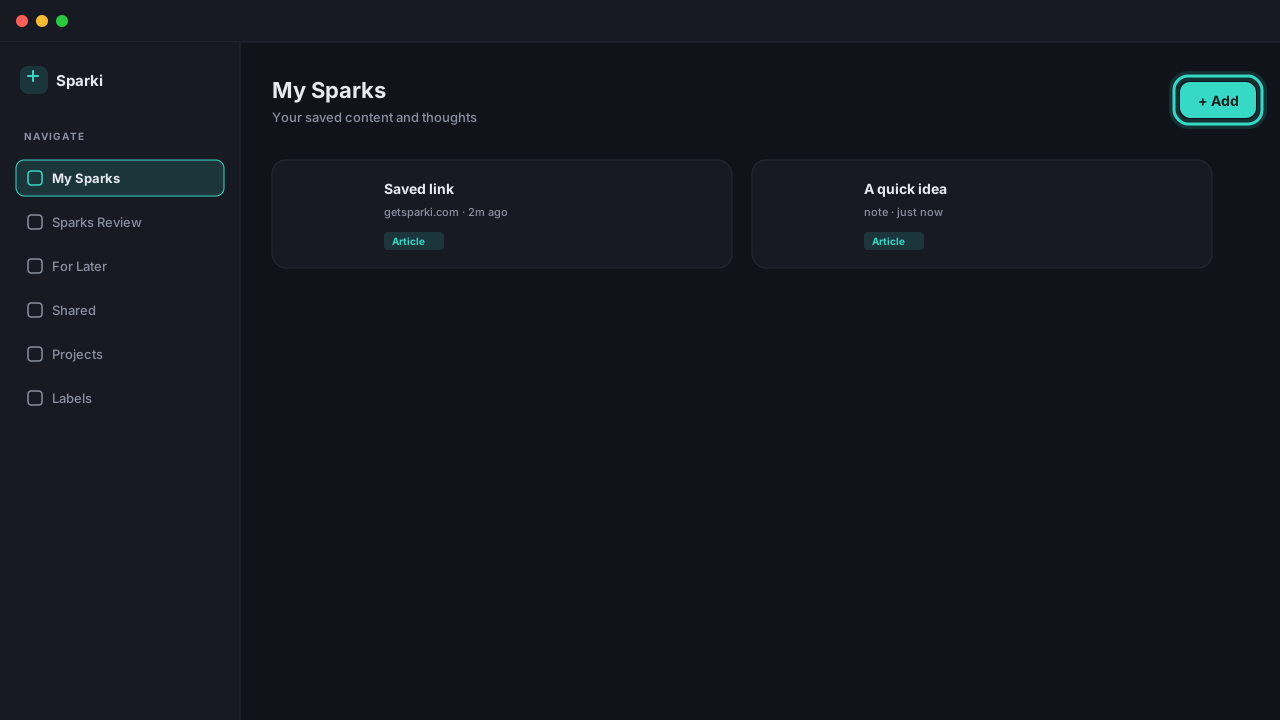
FeaturesHow does My Sparks work?
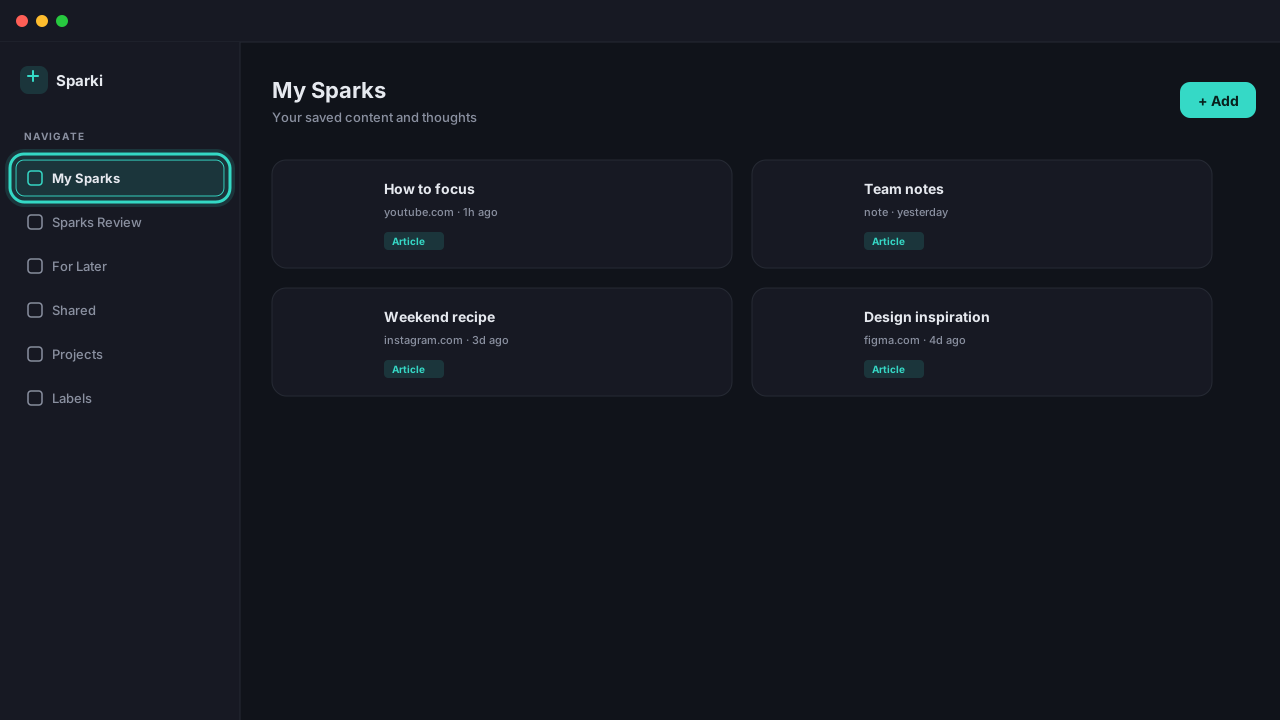
How does My Sparks work?
Every Spark you capture lands here. Search, open, edit, or share any of your sparks. Tap a spark to read it and add your thoughts (Sparkies).
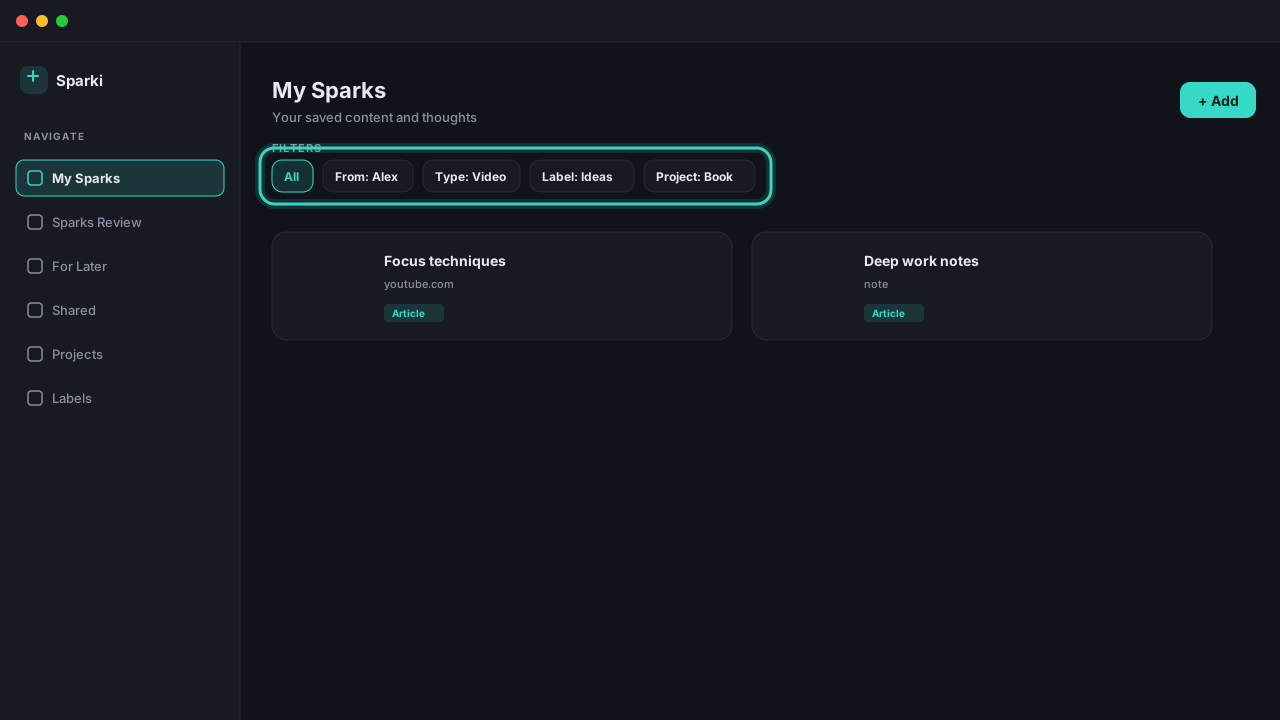
FeaturesHow does Filters work?
How does Filters work?
Above your sparks you'll find filter rows. Narrow results by person, type, format, label, or project. Stack multiple filters together, and clear them individually or all at once.
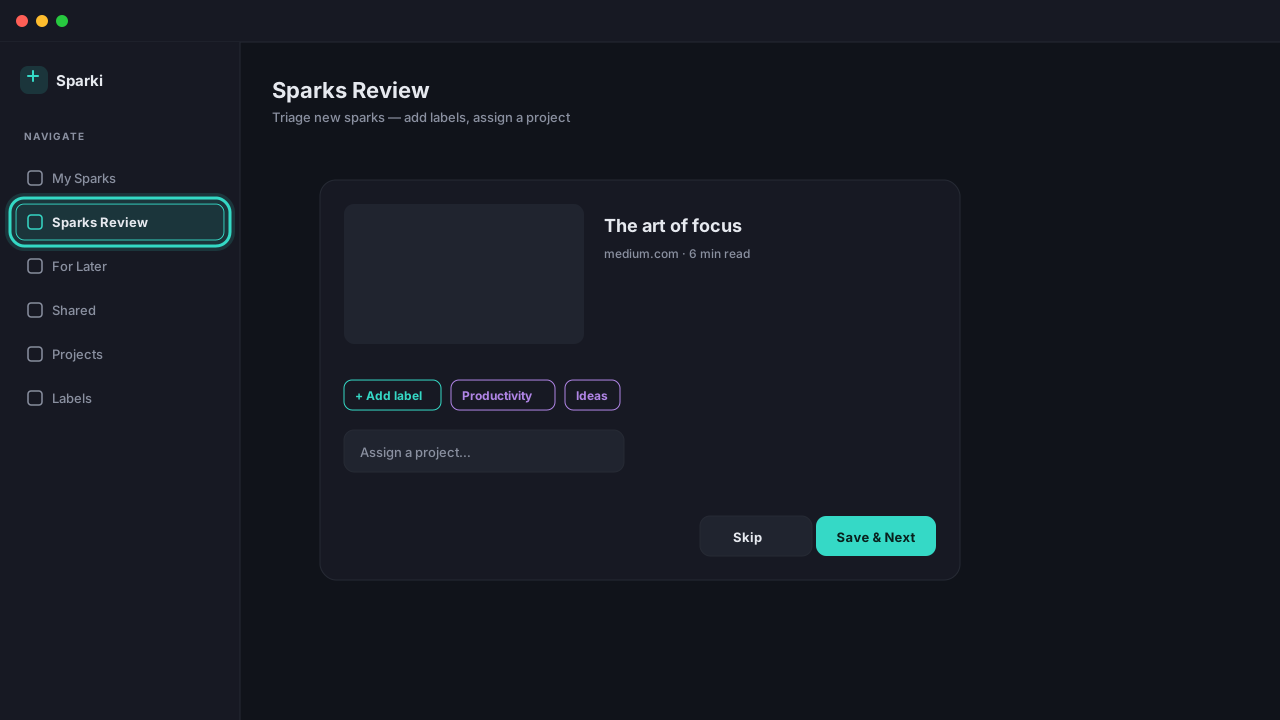
FeaturesHow does Sparks Review work?
How does Sparks Review work?
A guided triage screen for new and uncategorised sparks. Add labels, assign projects, flag sparks that need more detail, and keep your library organised.
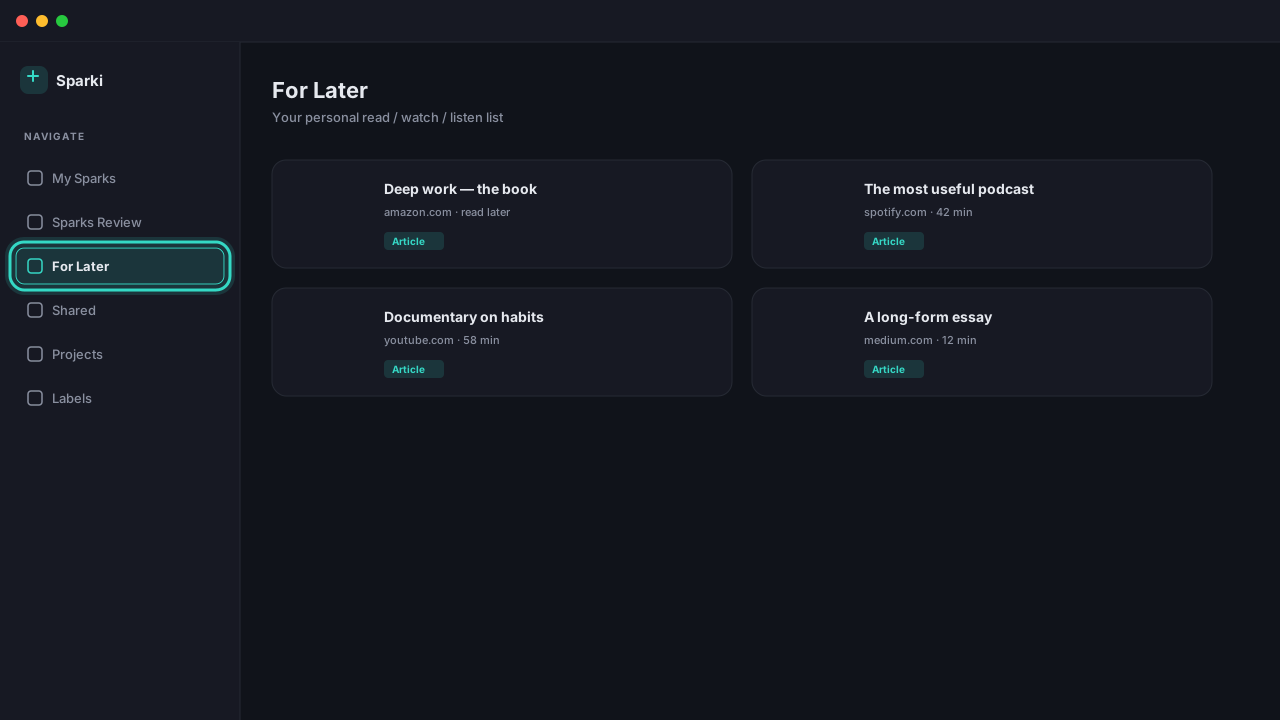
FeaturesHow does For Later work?
How does For Later work?
Sparks you mark as "Save for Later" appear here. It is your personal reading, watching, and listening list. Open a spark to view it, add your thoughts (Sparkies), or mark it as done.
FeaturesHow does Shared work?
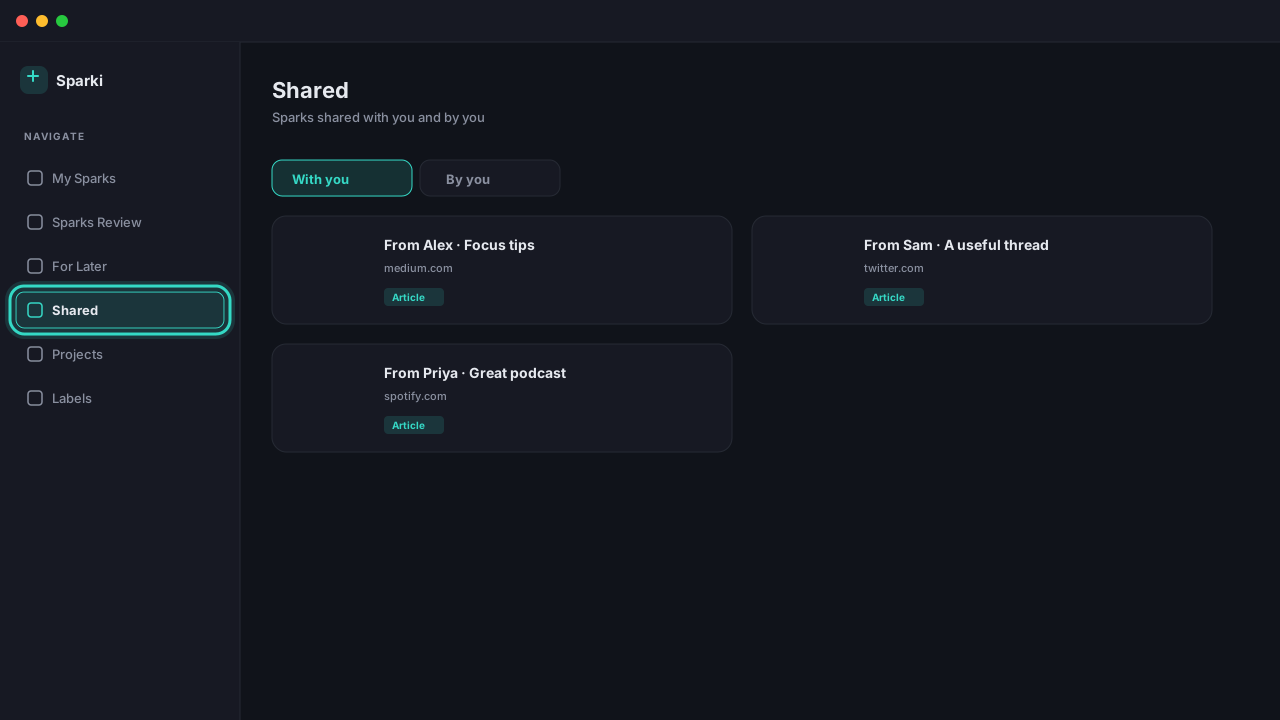
How does Shared work?
See sparks shared with you and ones you've shared with others. Accept incoming shares, view shared thoughts (Sparkies), and manage your sharing activity.
FeaturesHow does Share a Spark work?
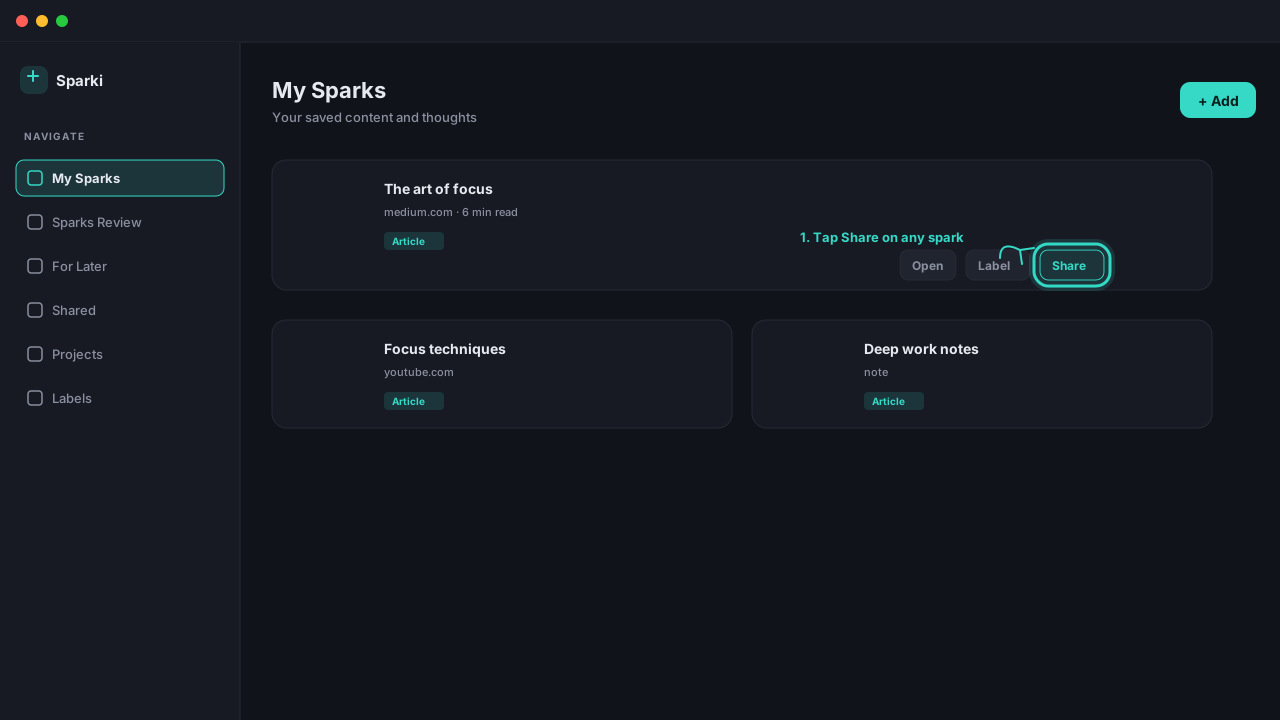
How does Share a Spark work?
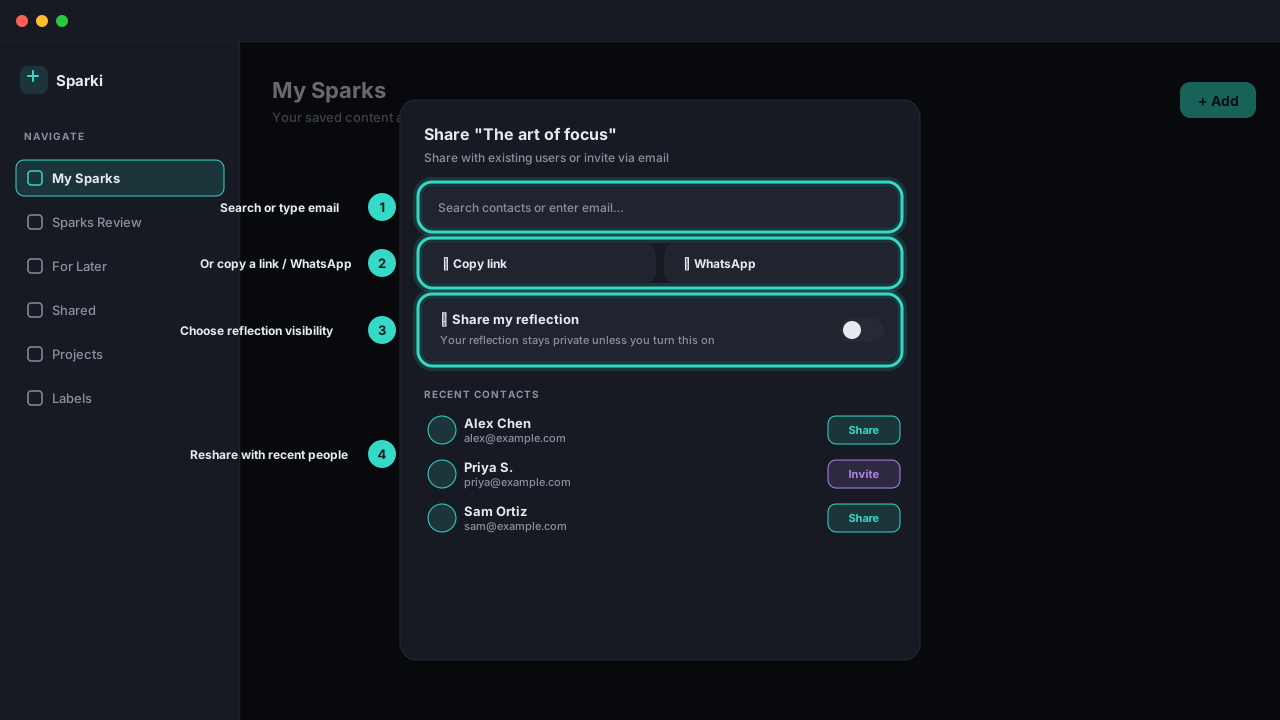
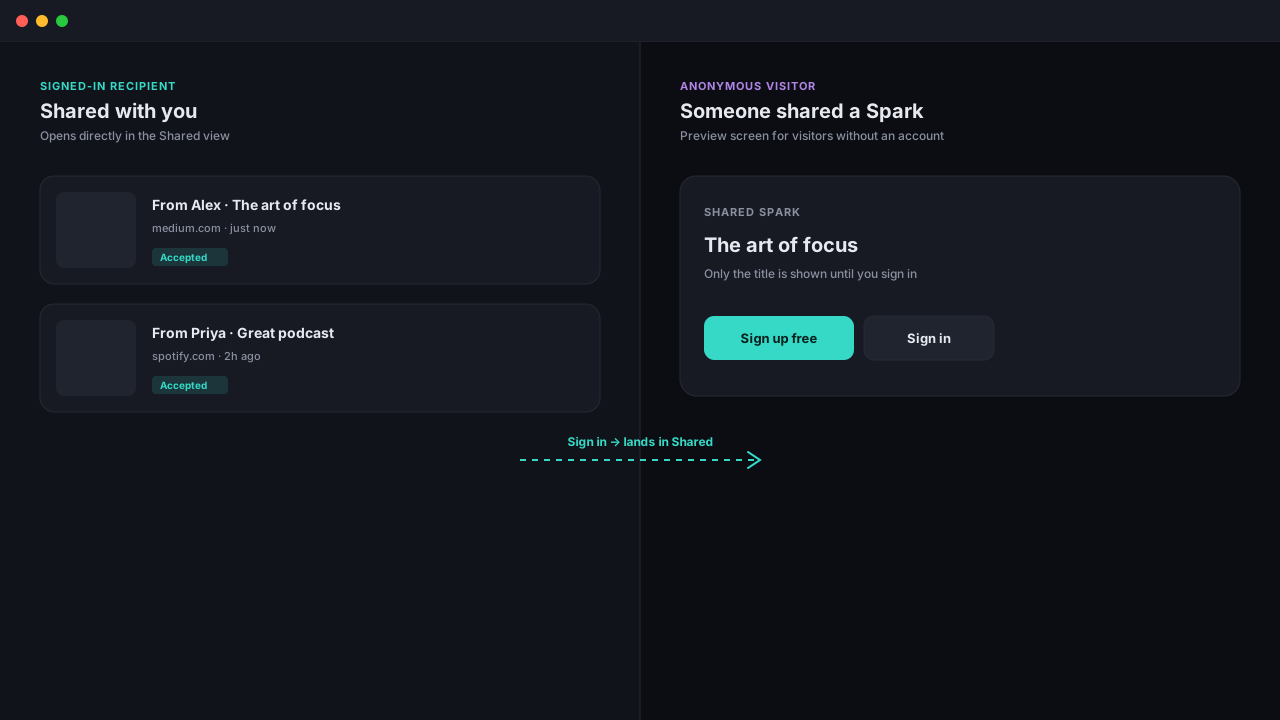
Send any spark to someone. Open a spark or use the share icon on its card, then pick a recent contact, type an email, copy a link, or send via WhatsApp. Toggle 'Share my reflection' to include your Sparkies (off by default). Recipients with a Sparki account get it in their Shared inbox. Anyone else sees a preview page with sign-in and sign-up buttons, and lands in Shared once they sign in.
FeaturesHow does Projects work?
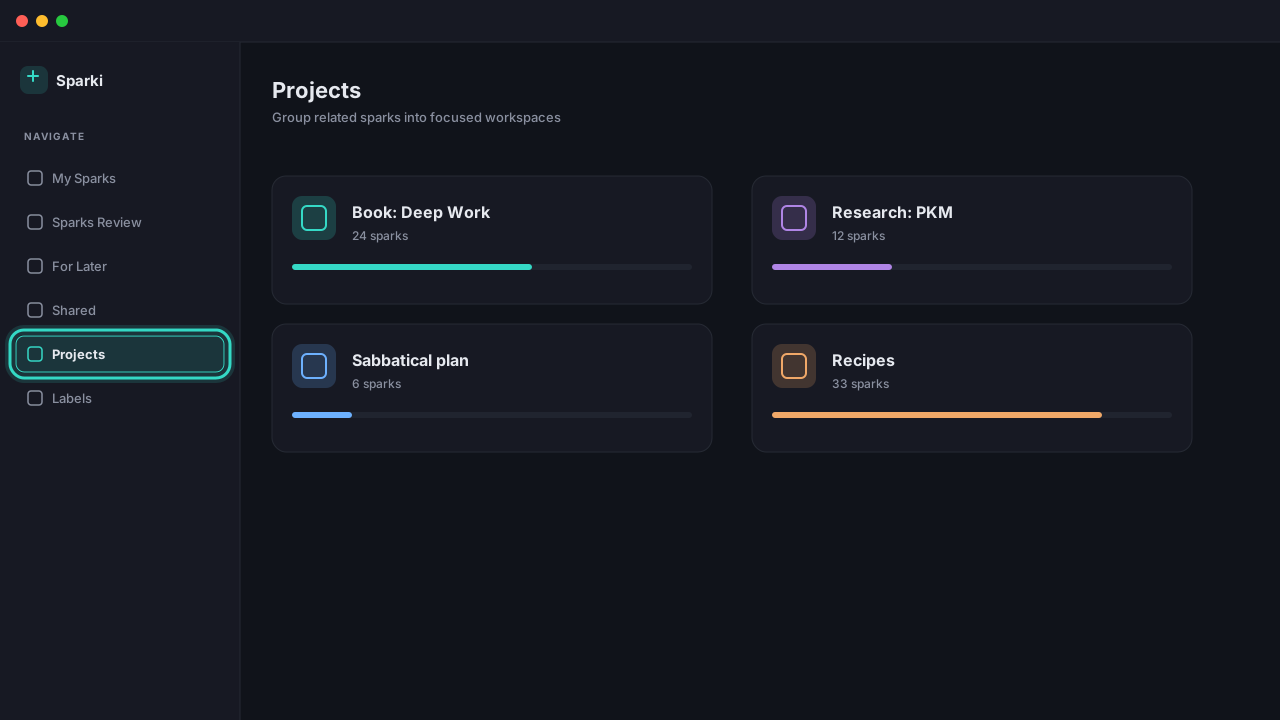
How does Projects work?
Group related sparks into projects, for a course, research topic, or anything you're working on. Each project shows its own spark list so you can focus on one area.
FeaturesHow does Labels work?
How does Labels work?
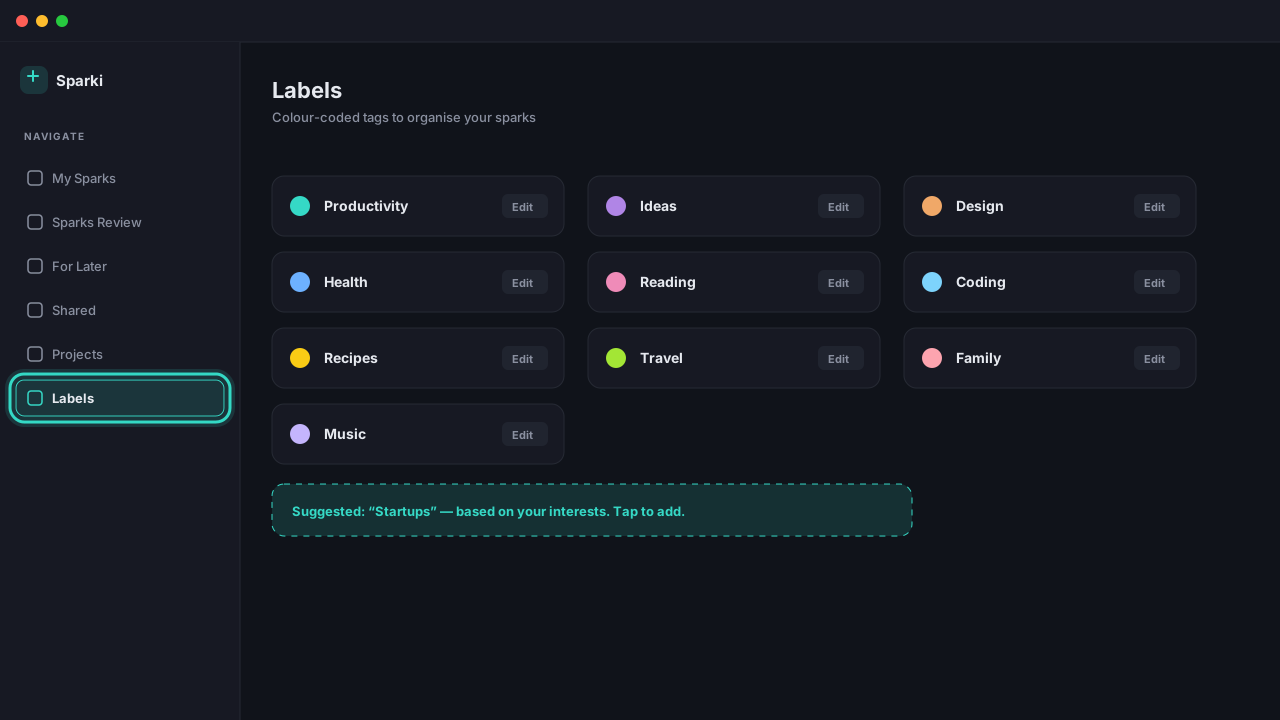
Create colour-coded labels to tag sparks by topic. The app also suggests labels based on your interests. Accept the ones you like and build your own taxonomy.
FeaturesHow do I share a spark?
How do I share a spark?
Open any spark (or use the share icon on its card in My Sparks) to open the Share dialog. From there you can: search a recent contact and send in one tap; type any email to share with an existing Sparki user or invite someone new; copy a share link to paste anywhere; or send straight to WhatsApp. Sending is instant. Recipients with a Sparki account see the spark in their Shared inbox. Anyone without an account gets an invite email and a preview link.
FeaturesCan I share with someone who doesn't have a Sparki account?
Can I share with someone who doesn't have a Sparki account?
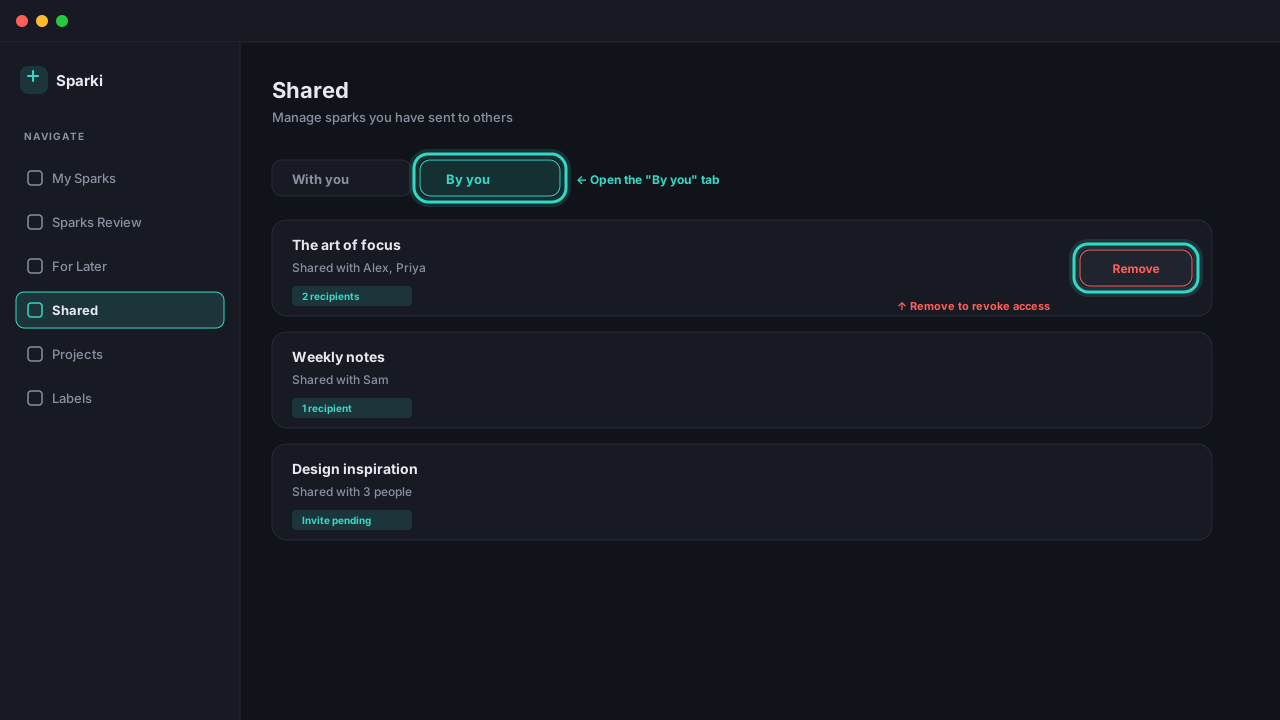
Yes. Enter their email in the Share dialog and we send an invite. They land on a preview page showing the spark title and Sign up / Sign in buttons. Once they create an account with that email, the shared spark appears automatically in their Shared inbox. Share links expire after 30 days if unopened, and you can revoke a pending invite at any time from Shared → By you.
FeaturesWhat does the recipient see?
What does the recipient see?
If the recipient is already signed in to Sparki with the email you shared to, they see the spark immediately inside Shared → With you, together with your reflection (if you enabled that toggle). If they're not signed in, or don't have an account yet, they land on a preview page that shows only the spark title, plus Sign in and Sign up buttons. As soon as they authenticate they are routed straight to Shared with the spark waiting for them. Only the title is visible before sign-in — the full content, source, and any reflections stay private.
Account & PrivacyWho can see my sparks?
Who can see my sparks?
By default, all sparks are private. You control visibility for each spark. Keep it private, or share it with specific people. Only you can see private sparks.
Account & PrivacyWhat does 'Share my reflection' do?
What does 'Share my reflection' do?
Your reflections (Sparkies) are private by default, even when you share the underlying spark. In the Share dialog, toggle 'Share my reflection' on to let this recipient see your thoughts on this spark. The setting is per share, per person: you can share the same spark to two different people with the toggle on for one and off for the other. Turning it off later hides your reflection again from that recipient.
Account & PrivacyHow do I stop sharing a spark or remove a recipient?
How do I stop sharing a spark or remove a recipient?
Go to Shared in the sidebar and switch to the 'By you' tab. Every spark you've sent is listed with its recipients. Tap Remove next to a person to revoke their access — the spark disappears from their Shared inbox immediately, and pending invites are cancelled. Deleting the original spark from My Sparks also revokes every share of it. You can re-share to the same person at any time from the Share dialog.
Account & PrivacyHow is my data stored?
How is my data stored?
Your data is stored securely using industry-standard encryption. We use secure cloud infrastructure and implement appropriate technical measures to protect your personal data.
Account & PrivacyCan I delete my data?
Can I delete my data?
Yes. You can delete individual sparks at any time. You can also request full account deletion, and we will process your request within 30 days.
TroubleshootingI forgot my password. How do I reset it?
I forgot my password. How do I reset it?
On the sign-in page, click "Forgot password?" and enter your email. You'll receive a reset link. If it doesn't arrive within a few minutes, check your spam folder.
TroubleshootingAn image on a spark isn't loading.
An image on a spark isn't loading.
Images are served via short-lived signed URLs (1 hour). Refresh the page to regenerate the URL. If the image still doesn't load, the file may have been removed or exceeds the 10MB size limit.
Still need help?
Reach out to our team or send feedback. We read every message.