Why add Sparki to your home screen?
Faster access
One tap from your home screen — no browser search, no bookmarks folder.
App-like experience
Your own icon in the app grid, its own place in your recent apps list.
Full-screen launch
Sparki opens without the address bar on supported devices, so you see more of your sparks.
Easier daily habit
A visible icon nudges you to capture the spark before it's gone.
There's nothing to download from an app store — Sparki uses your browser's built-in Add to Home Screen feature. You can remove the icon at any time.
Jump to your device
On iPhone (Safari)
These steps use Safari on iOS 16 or later. iPad is nearly identical, with the Share button in the top toolbar instead of the bottom.
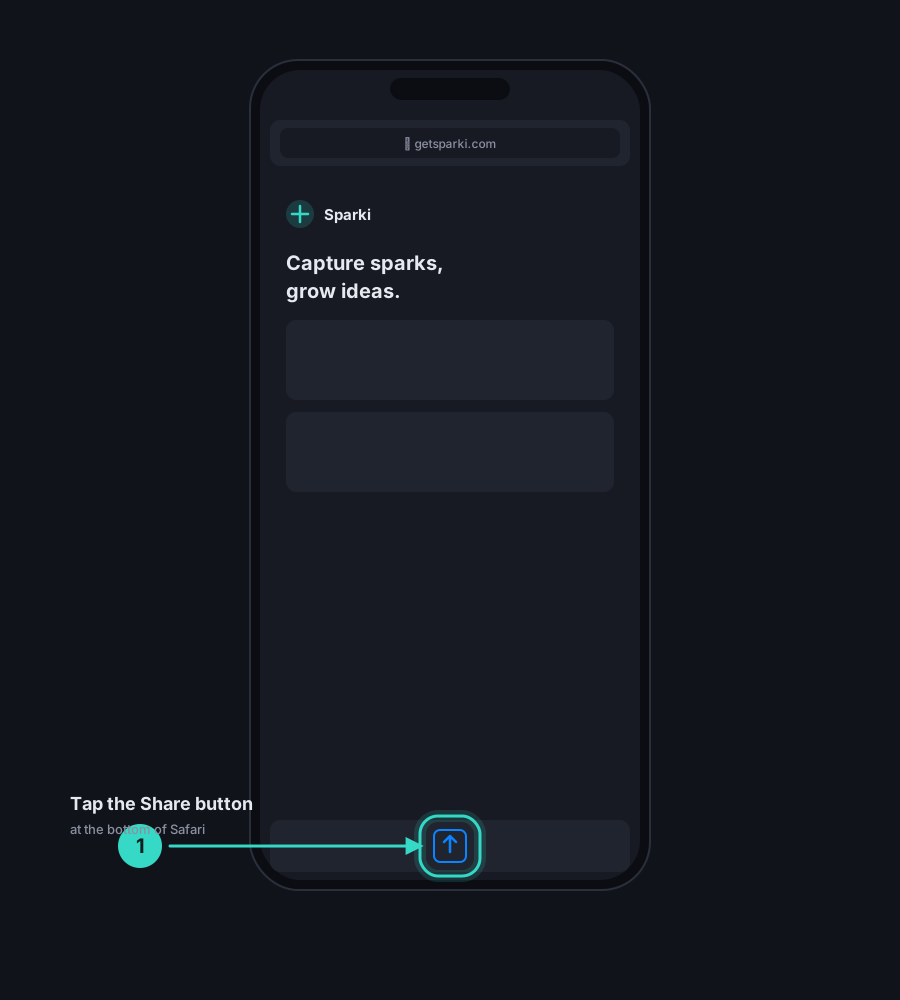
1.Open getsparki.com in Safari
Home screen installs on iPhone only work in Safari. If you're in Chrome, Firefox, or an in-app browser, open Safari first, then go to getsparki.com. Once loaded, look for the Share button in the toolbar at the bottom of the screen (or at the top on iPad).
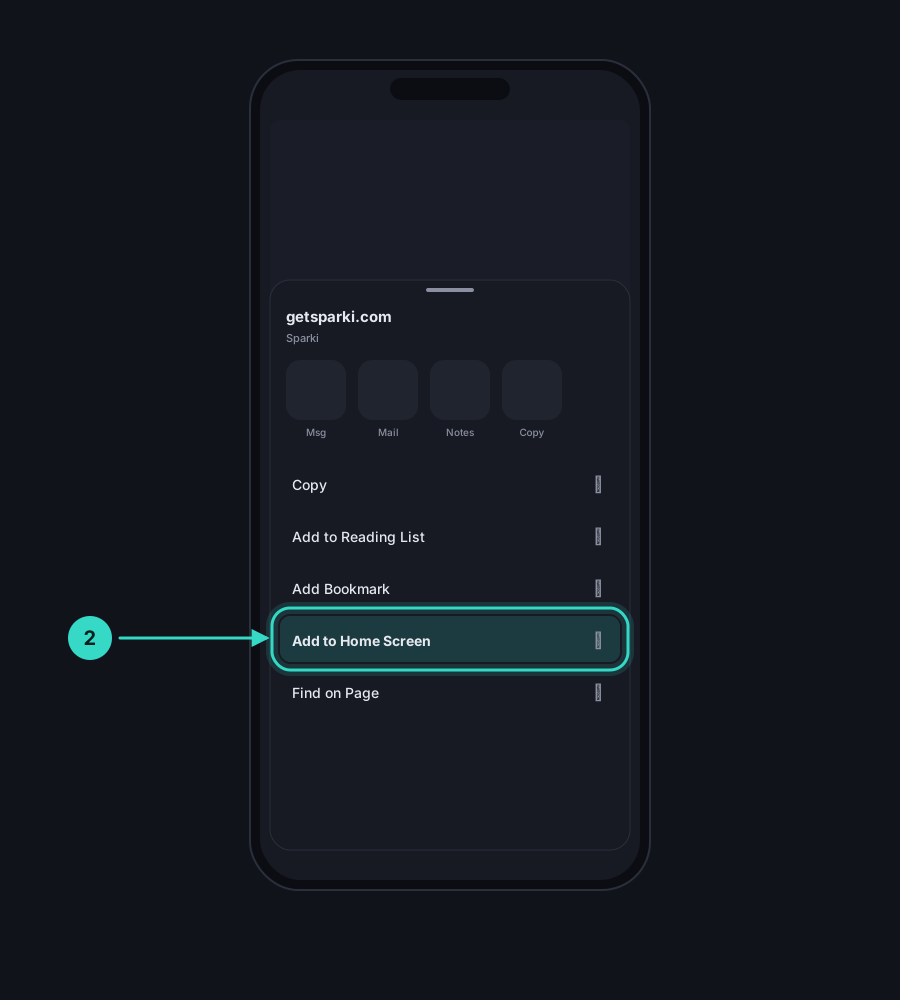
2.Scroll to "Add to Home Screen"
Tapping Share opens the iOS share sheet. Scroll past the row of apps until you see the list of actions. Tap Add to Home Screen. If you can't see it, tap Edit Actions at the bottom of the sheet and enable it once.
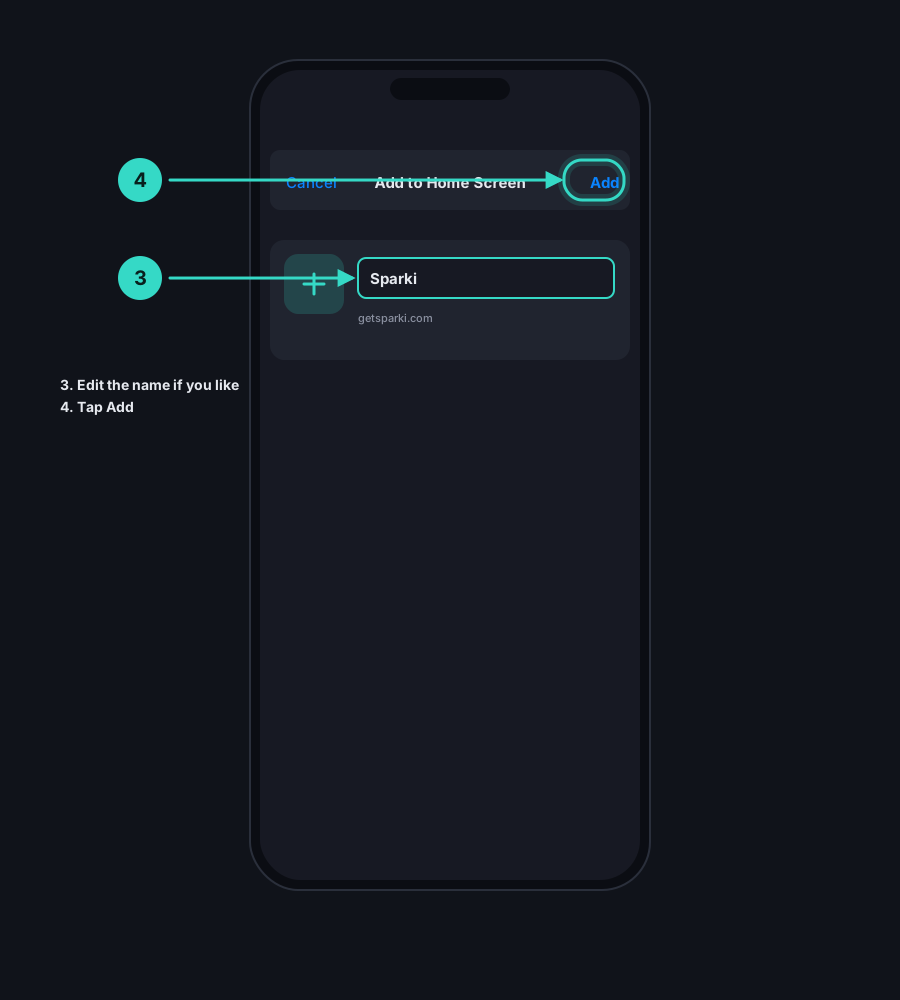
3.Edit the name if you like, then tap Add
You'll see a preview showing the Sparki icon and the name that will appear on your home screen. You can rename it if you want — some people shorten it or use an emoji. Tap Add in the top-right corner to finish.
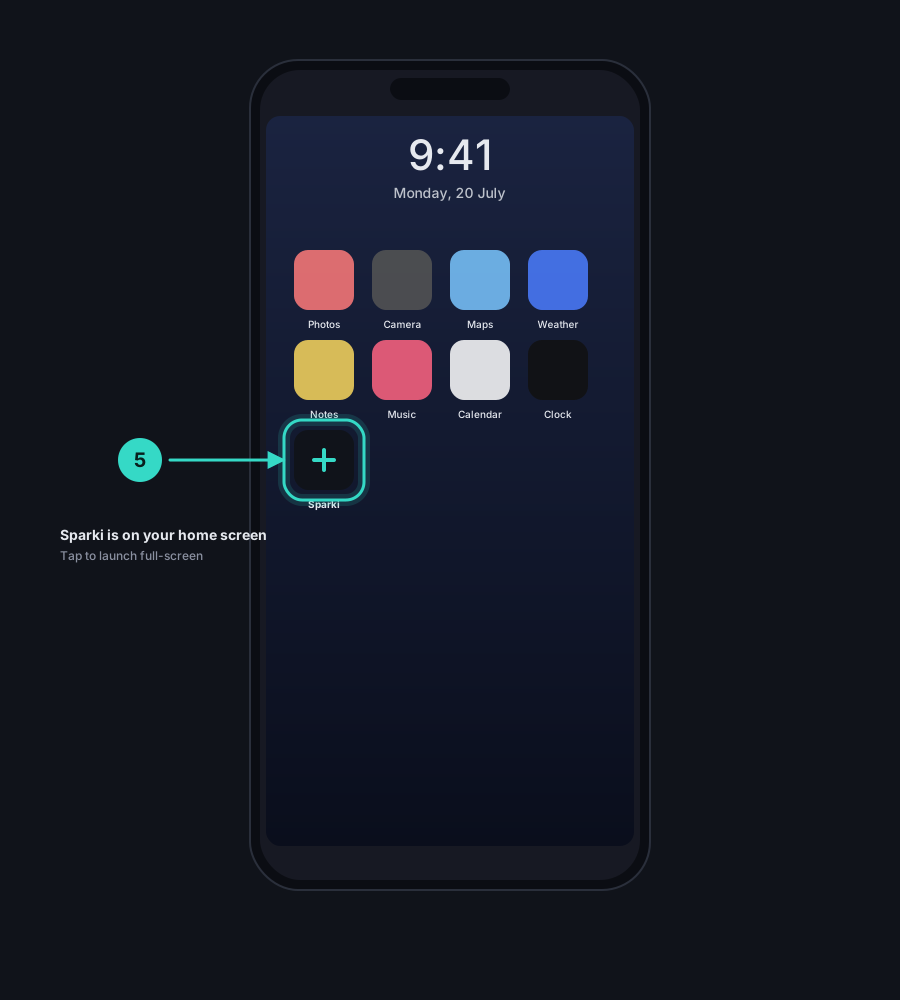
4.Launch Sparki from your home screen
You'll be dropped back to your home screen, with a new Sparki icon on the last page. Tap it and Sparki opens full-screen, without the Safari address bar, and behaves like an installed app. You'll stay signed in.
On Android (Chrome)
These steps use Chrome on Android. Other browsers (Samsung Internet, Firefox, Edge) have a similar menu — look for Install app, Add to Home screen, or a small "install" icon in the address bar.
1.Open getsparki.com in Chrome
On Android, home screen installs work best in Chrome. Open Chrome, go to getsparki.com, and wait for the site to fully load. Then tap the three-dot menu (⋮) in the top-right corner of the browser.
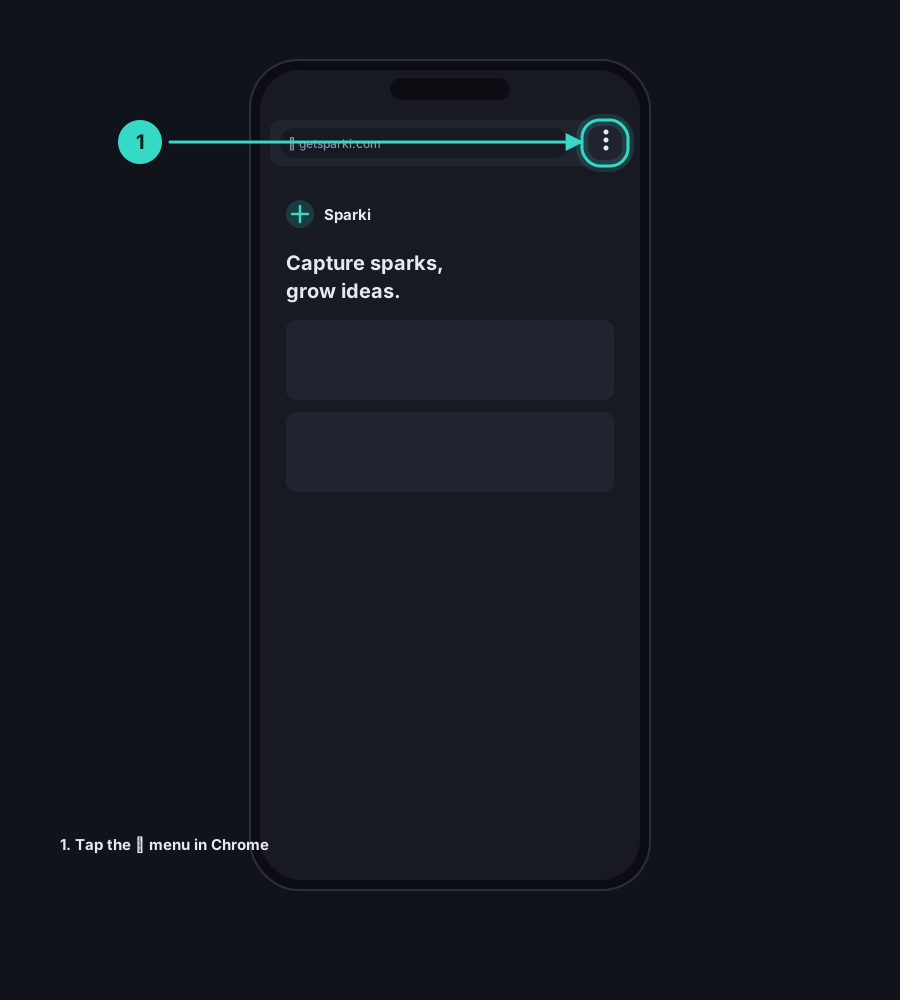
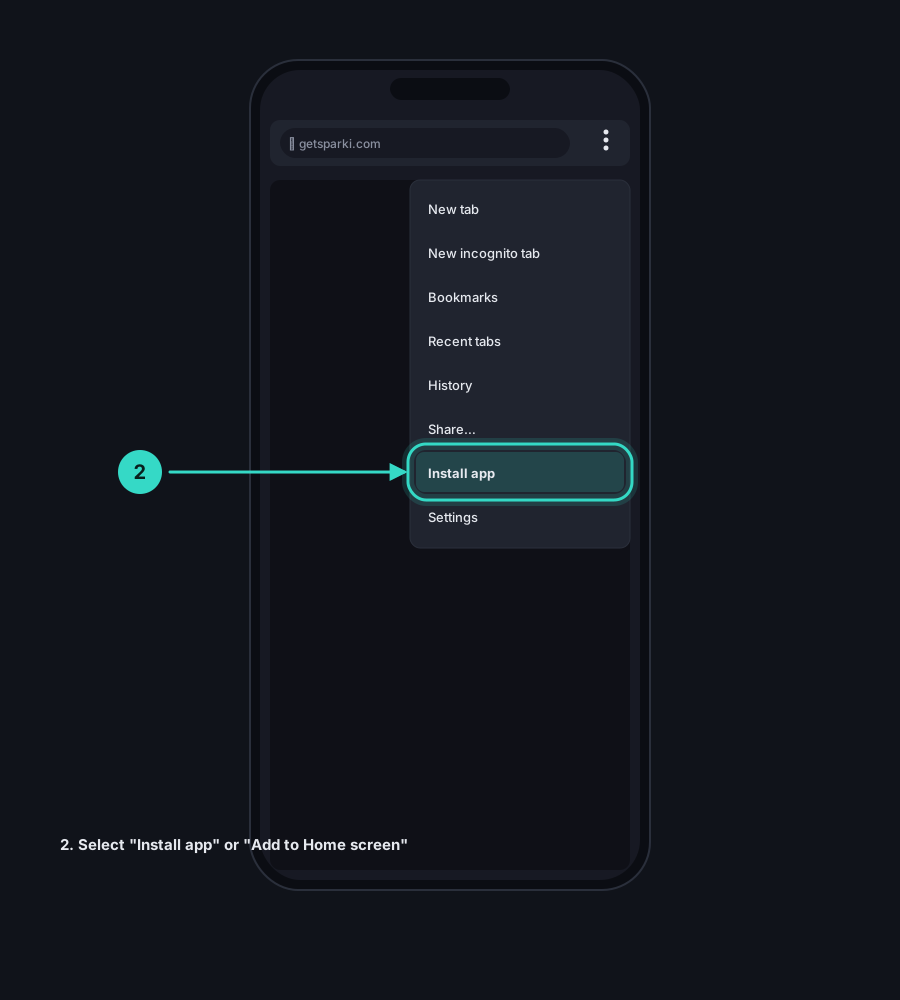
2.Tap "Install app" or "Add to Home screen"
In the menu that appears you'll see either Install app or Add to Home screen (the label depends on your version of Android and Chrome). Both do the same thing — tap the one you see.
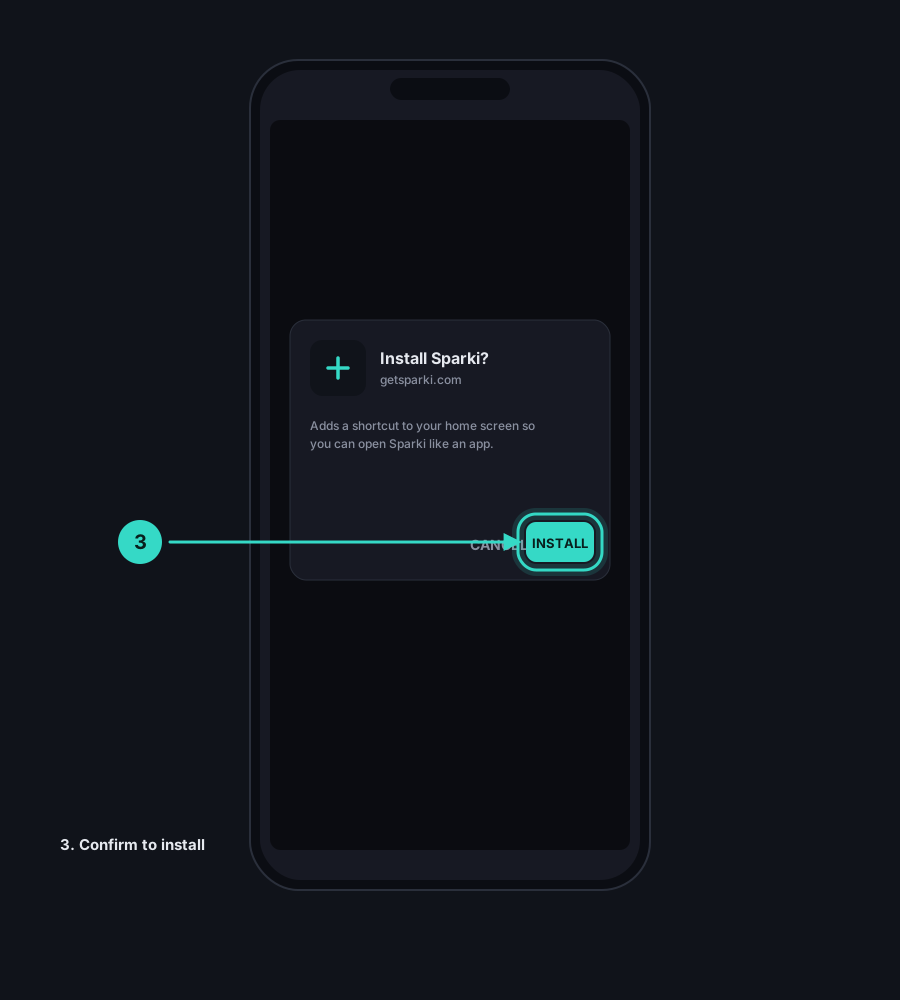
3.Confirm the install
A short confirmation dialog appears with the Sparki name and icon. Tap Install (or Add) to confirm. Android may briefly show a small progress notification while it finishes installing.
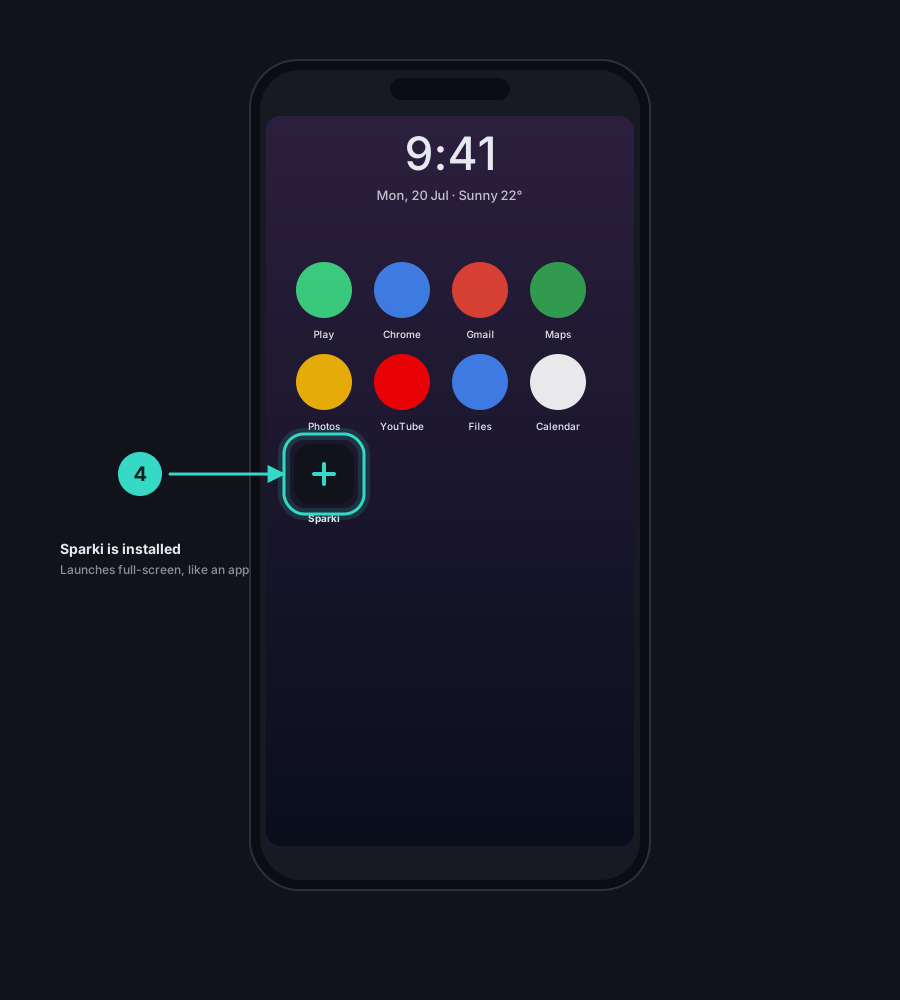
4.Open Sparki from your home screen
The Sparki icon appears on your home screen (and in your app drawer). Tap it to launch Sparki full-screen. You'll stay signed in between launches, and it'll feel like a normal app.
Troubleshooting
I can't see "Add to Home Screen"
On iPhone, the option only appears in Safari — not in Chrome, Firefox, or an in-app browser (such as the one inside Instagram or Slack). Open Safari directly and try again. If it's still missing, open the share sheet, tap Edit Actions, and enable Add to Home Screen. On Android, make sure you're in Chrome (or another PWA-capable browser) and reload the page — the menu item only appears once the site's install prompt is ready.
Why doesn't it open like an app?
If Sparki opens in a browser tab with the address bar visible, the shortcut is a regular bookmark, not the installed version. Delete the icon, reload getsparki.com in Safari or Chrome, and follow the install steps again. On very old versions of iOS or Android, full-screen launch isn't supported — Sparki will still open, just in the browser.
Why is the icon missing?
On iPhone, new icons land on the last page of your home screen — swipe left until you find them. On Android, check the app drawer (swipe up from the home screen). If nothing shows up, some managed devices (school or work profiles) block installs — check your device policies, then reinstall.
Can I uninstall Sparki?
Yes. Long-press the icon and choose Remove (iPhone) or Uninstall (Android). Your account and sparks are unaffected — you can reinstall any time by revisiting getsparki.com.